With the AttackIQ Security Optimization Platform, customers run automated scenarios in a repeatable manner to replicate cyberattack techniques used in the real world by threat actors and malware. This week, we are proud to announce that the AttackIQ Security Optimization Platform now includes Atomic Red Team by Red Canary, a collection of small, highly portable detection tests mapped to MITRE ATT&CK®.
Red Canary, a security operations solutions provider, created Atomic Red Team from open-source code to help defenders test their controls against a broad spectrum of attacks and improve their security posture. For years, security teams could use Atomic Red Team by hand in manual tests. Now AttackIQ exponentially increases the utility of Atomic Red Team by deploying it at scale, continuously, and in a production environment to validate security program effectiveness. Adding Atomic Red Team into the AttackIQ platform bolsters the testing capabilities that already exist in the AttackIQ scenario library. With this addition to the AttackIQ scenario library, users gain access to a wider variety of attack techniques, and can use the YAML files in Atomic Red Team to design their own tests.
In this post, we will show you how to create an assessment in the AttackIQ platform that:
- receives an Atomic Red Team YAML file as input;
- automatically executes all the actions defined in the YAML file, including dependency resolution and cleanup; and
- reports the results through the platform like any other AttackIQ scenario.
Leveraging Atomic Red Team with AttackIQ
To support the automation of Atomic Red Team tests, we created a new scenario called Atomic Red Team Script. Let’s walk through how to create a new assessment and add this scenario to it.
Creating a new assessment
To create a new assessment in the AttackIQ platform, follow these steps:
- Go to the Assessments section of the menu and click Create New Assessment.
- When asked which template to use, select Create Custom.
- Once in the assessment’s setup view, configure your assets accordingly. Bear in mind that not all Atomic Red Team tests can run on all platforms. In this example, we will run a Linux test, so make sure you select a Linux asset.
- To add the scenario to the assessment, click the Add Test button, and then Add Scenarios. The scenario library will appear.
- Use the search box to search for “Atomic Red Team”, select the Atomic Red Team Script scenario, and click Add Scenarios.
Configuring the scenario
Let’s configure the scenario by clicking on the three dots and then on Configure. The following form will appear:
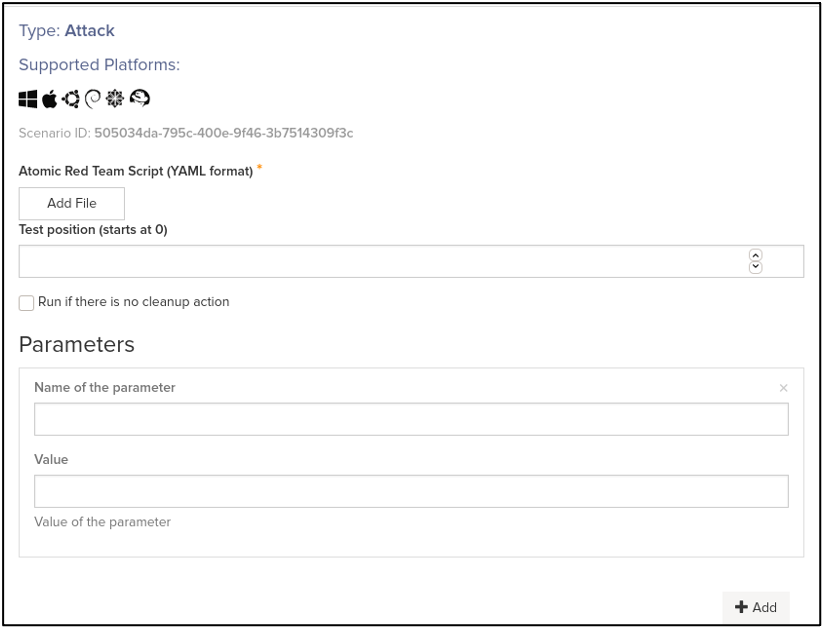
Figure 1 – Atomic Red Team Script scenario configuration
The only required element of this configuration is the Atomic Red Team YAML file itself. Go to the official Atomic Red Team GitHub repository and select one test of the many on offer. For this example, let’s use the technique OS Credential Dumping (T1003), sub-technique 008: /etc/passwd and /etc/shadow. Download the corresponding YAML file from the repository and upload it to the AttackIQ platform using the Add File button.
If you review the file, you will see that it contains two tests named “Access /etc/shadow (Local)” and “Access /etc/passwd (Local)”. The platform will run the first test of the file by default, but you can select a different test by using the Test position parameter. In this example, we will select the second test. Enter a 1 below Test position (note that test position starts at 0).
You may notice that this specific test receives an input argument, named “output_file”, the default value of which is “/tmp/T1003.008.txt”. The AttackIQ scenario allows you to change the value of input arguments through the Parameters section of the configuration. Simply specify “output_file” under Name of the parameter and your desired value under Value (e.g. “/tmp/attackiq_dump.txt”).
You may have questions about the Run if there is no cleanup action checkbox. It is a protection measure for tests that could change your environment. Most tests will include a “cleanup_command” that will remove any artifact created and undo any changes done to your system – but some tests do not have it. Unless the checkbox is enabled, the scenario will refuse to run tests that do not include a cleanup command, preventing you from accidentally running something that leaves a permanent change. In this case, the T1003.008 test does include a cleanup command, so the checkbox can remain unchecked.
After the configuration steps, you should see something like this:
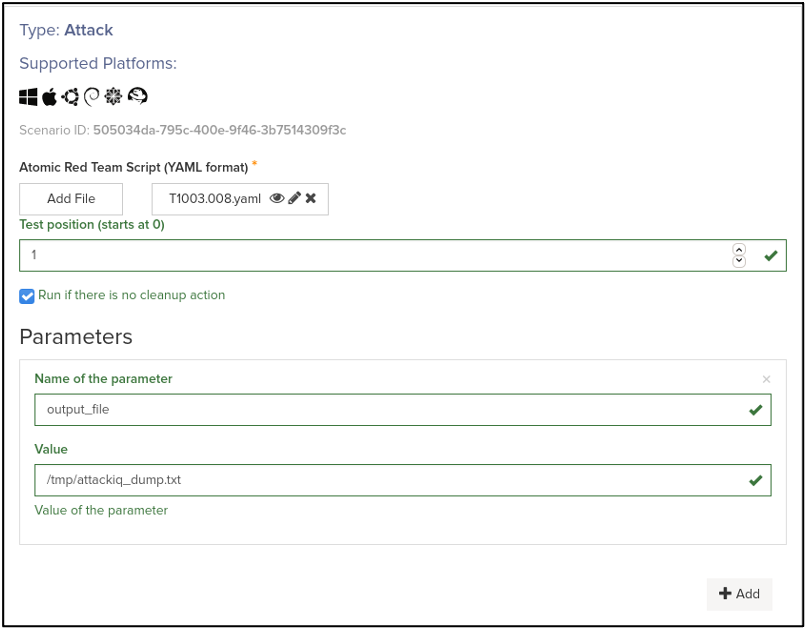
Figure 2 – Atomic Red Team Script scenario configured with example values
At this point you are good to move forward. Click on Apply and exit the Setup screen by clicking on Continue in the lower region of the screen.
Running the assessment
Now on the On Demand page, you can just click Run Now to launch the scenario and see how your Atomic Red Team test executes.
Results and Reports
After a few seconds, the execution will finish and you will be able to review the results. You should see something like this:
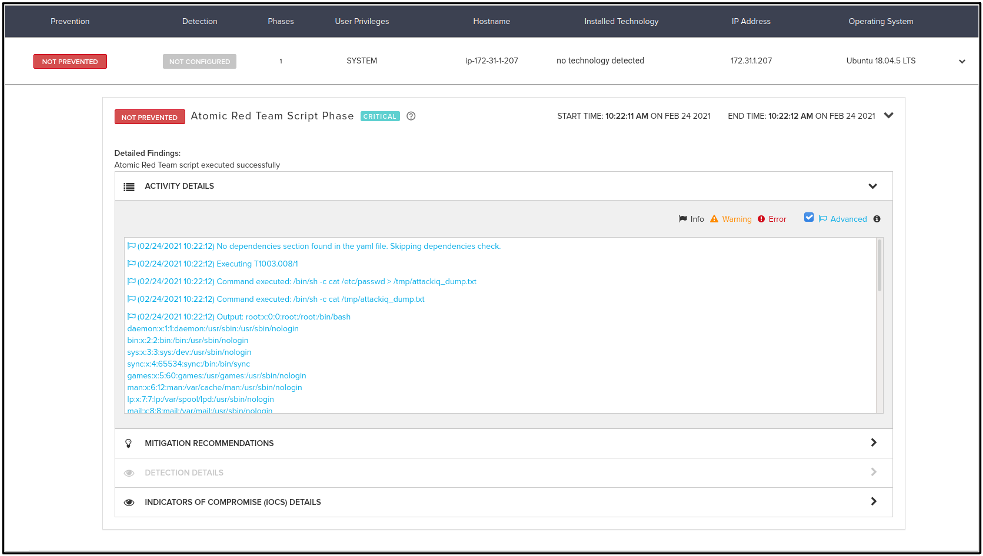
Figure 3 – Atomic Red Team Script scenario results with T1003.008
As you can see in the logs, the scenario parsed the YAML file and identified its different sections. No dependencies were downloaded since the test did not require them. Then it executed the commands under the “executor” section of the file, printing their output. Since the exit code of these commands was 0, the scenario assumes they were successful and thus the scenario outcome is Not Prevented. Had a security control prevented the access to /etc/passwd in some way, the test would have failed and the scenario would have been Prevented. Finally, the cleanup command is run to ensure that the system is left as it was before the test was run.
As with any other scenario, under the Indicators of Compromise (IOCs) Details section, you can see the details of all the commands executed by the test. Notice how the custom parameter you configured for “output_file” was used in the commands:
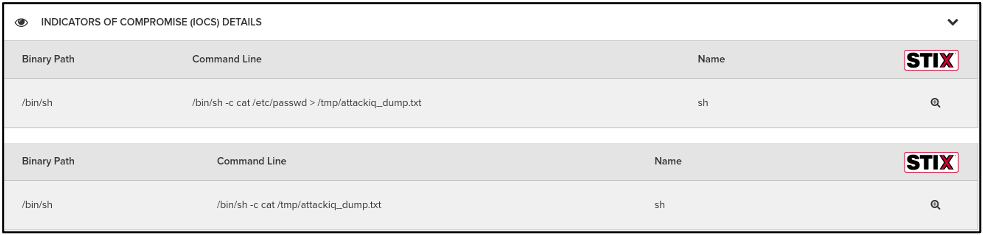
Figure 4 – IOCs of the execution with T1003.008
You may also notice that what we just executed is very similar to our Account Discovery scenario using the “Through Linux cat /etc/passwd” option. Let’s then review its mitigation recommendations, since they apply to this run of T1003.008 as well:
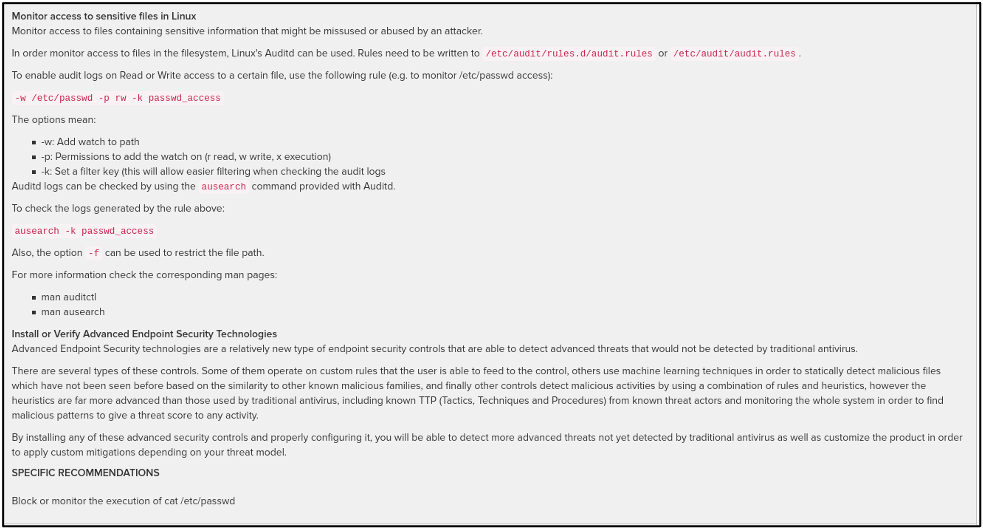
Figure 5 – Mitigation recommendations for access to sensitive files in Linux
As an exercise to the reader: try to apply the mitigation recommendations and run the Atomic Red Team Script scenario again. What is the scenario outcome now? Now try to execute the first test of the YAML file (Test position 0, or just blank). Does the outcome change? How can this variant of the technique be mitigated?
Conclusion
In this blog post, we guided you through the creation of an assessment that included the execution of an Atomic Red Team test. You selected one of the many Atomic Red Team YAML files available in the official repository, configured it to adapt it to your needs, and ran it. You were able to see the outcome of the execution, how the test cleaned up after itself, what indicators of compromise (IOCs) were generated, and what the mitigations are for the attack, as with any other AttackIQ scenario.
With the ability to run any number of the existing Atomic Red Team tests, or the ones created by you following the specification, the AttackIQ Security Optimization Platform has widely increased its offering of automated tests that can help optimize your security controls against real attackers, in a repeatable and continuous manner.